Diagnose a failure and hand off through a dashboard
What you will learn
Trace a code error in run history and fix it, then put the daily mart on a dashboard chart and settle its description and permissions for an analyst.
The last lesson has two halves. First you break weather_daily_pipeline on purpose and learn the path to its cause. Then you put the repaired pipeline's result on a dashboard chart and hand it to an analyst.
Set up a safe place to practice
This exercise temporarily breaks the collect_weather_hourly code. Do not run it on a shared or production pipeline.
- Turn off Enable schedule under Pipeline settings → Schedule so an automatic run does not interrupt your diagnosis.
- Copy the current code somewhere safe.
If another pipeline also references this code, do not edit the original in the inspector — use Save as new code and work on a copy. Editing the original affects the next run of every pipeline that references it.
Your pipeline should currently be connected like this:
collect_weather_hourly → src_weather_hourly → prepare_weather_daily
                                              ├→ stg_weather_hourly
                                              └→ mart_weather_daily
Where run information lives
- Run history at the top — the state of recent runs as small bars.
- Nodes on the canvas — running, succeeded, and failed states appear on the node.
- Inspector → History — per-run state, start time, duration, error description, and stack trace for the selected node.
This is not a preview of each node's input and output rows. Inspect values in the dataset's data view after the run finishes.
Break it
Reproduce the most common failure in external integrations: a wrong path.
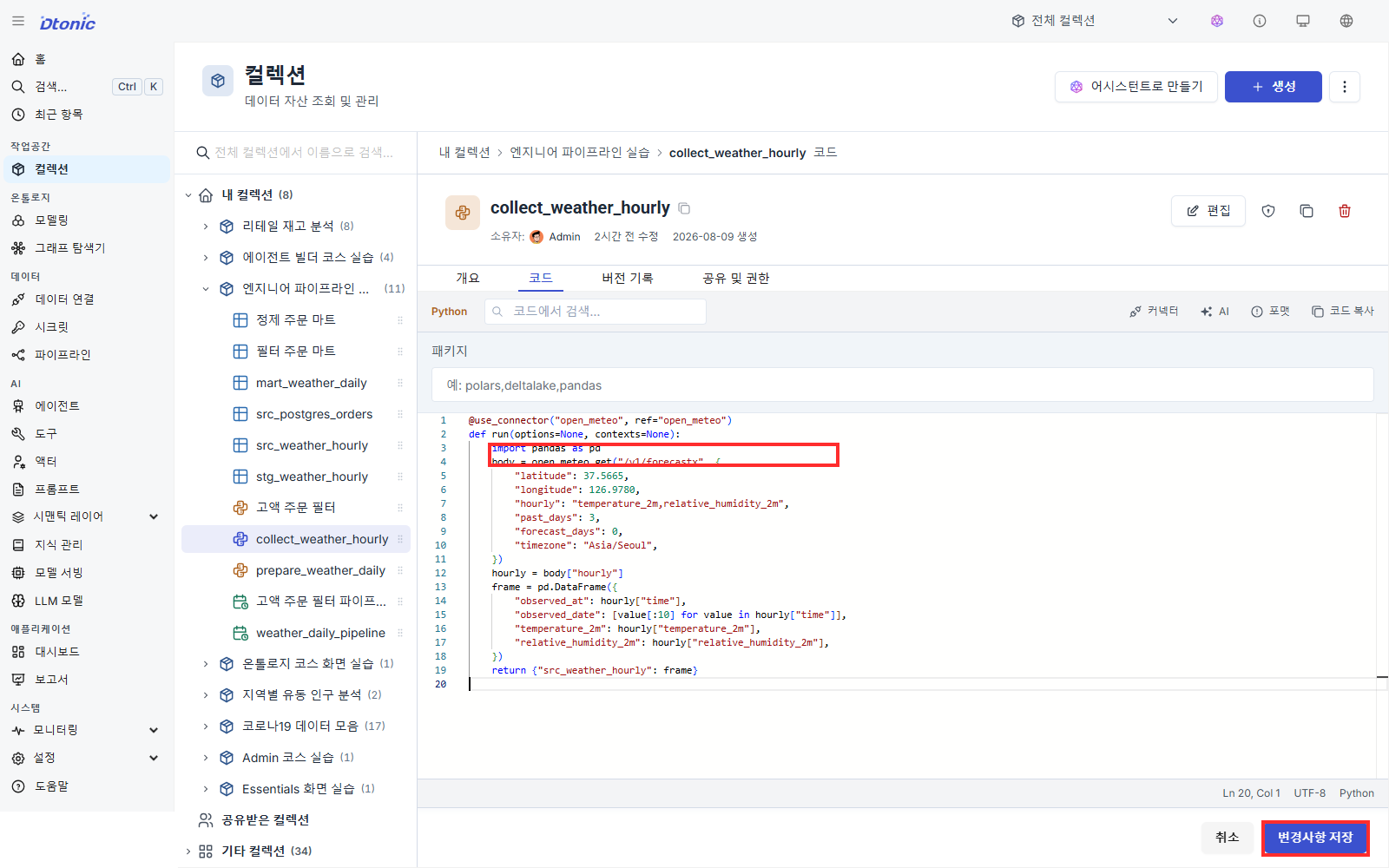
- Edit the
collect_weather_hourlycode. - Change the call path
"/v1/forecast"to a nonexistent"/v1/forecastx". - Save the code and the pipeline changes.
- Select Run now.
- Wait for the run to end in a failed state.
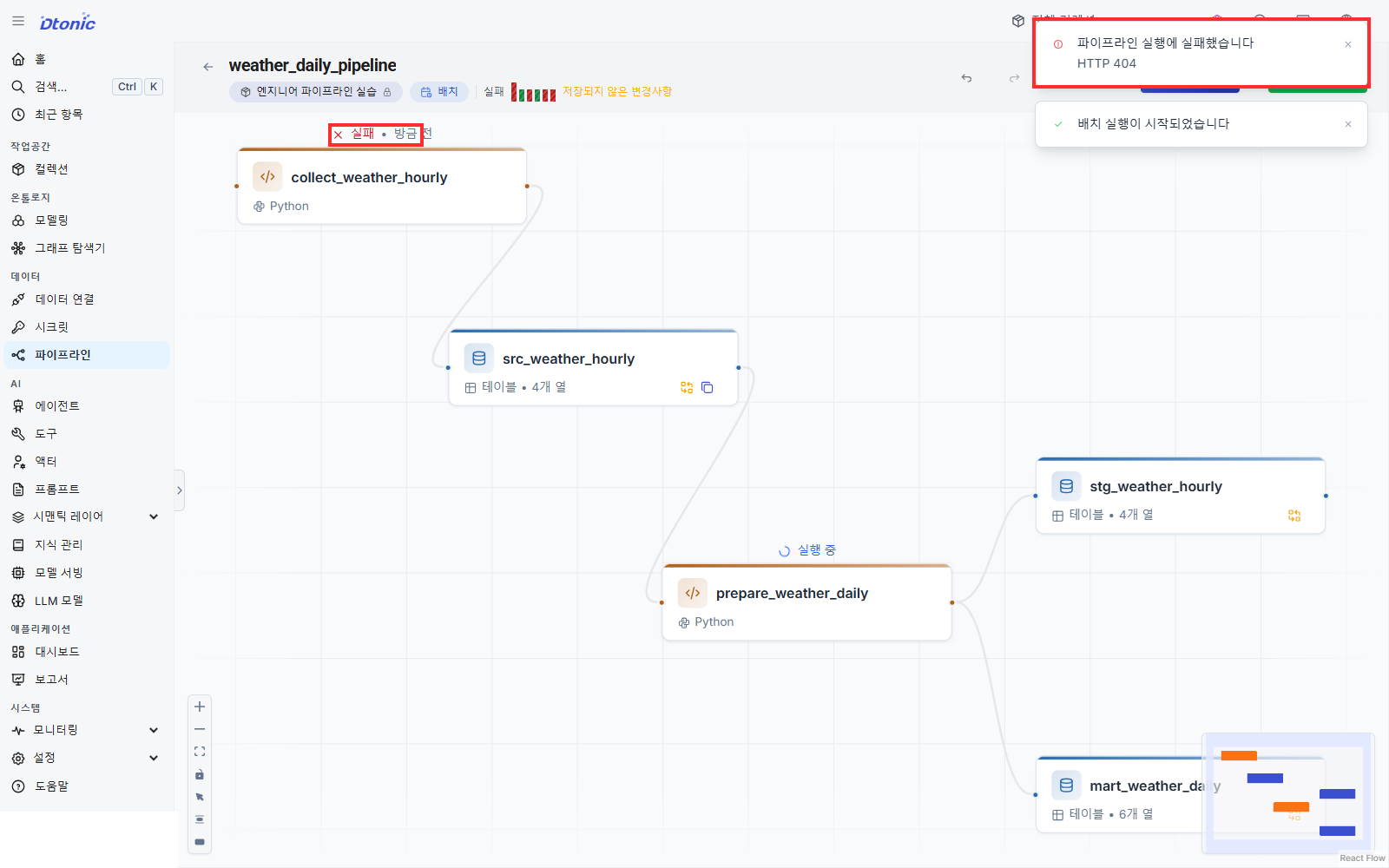
Find the cause in history
- Select the failed
collect_weather_hourlynode on the canvas. - Open the History tab in the inspector on the right.
- Confirm
ConnectorHTTPError: HTTP 404in the latest run. - Return to the Code tab and confirm the
forecastxtypo. - If useful, copy the run identifier and error into the incident record.
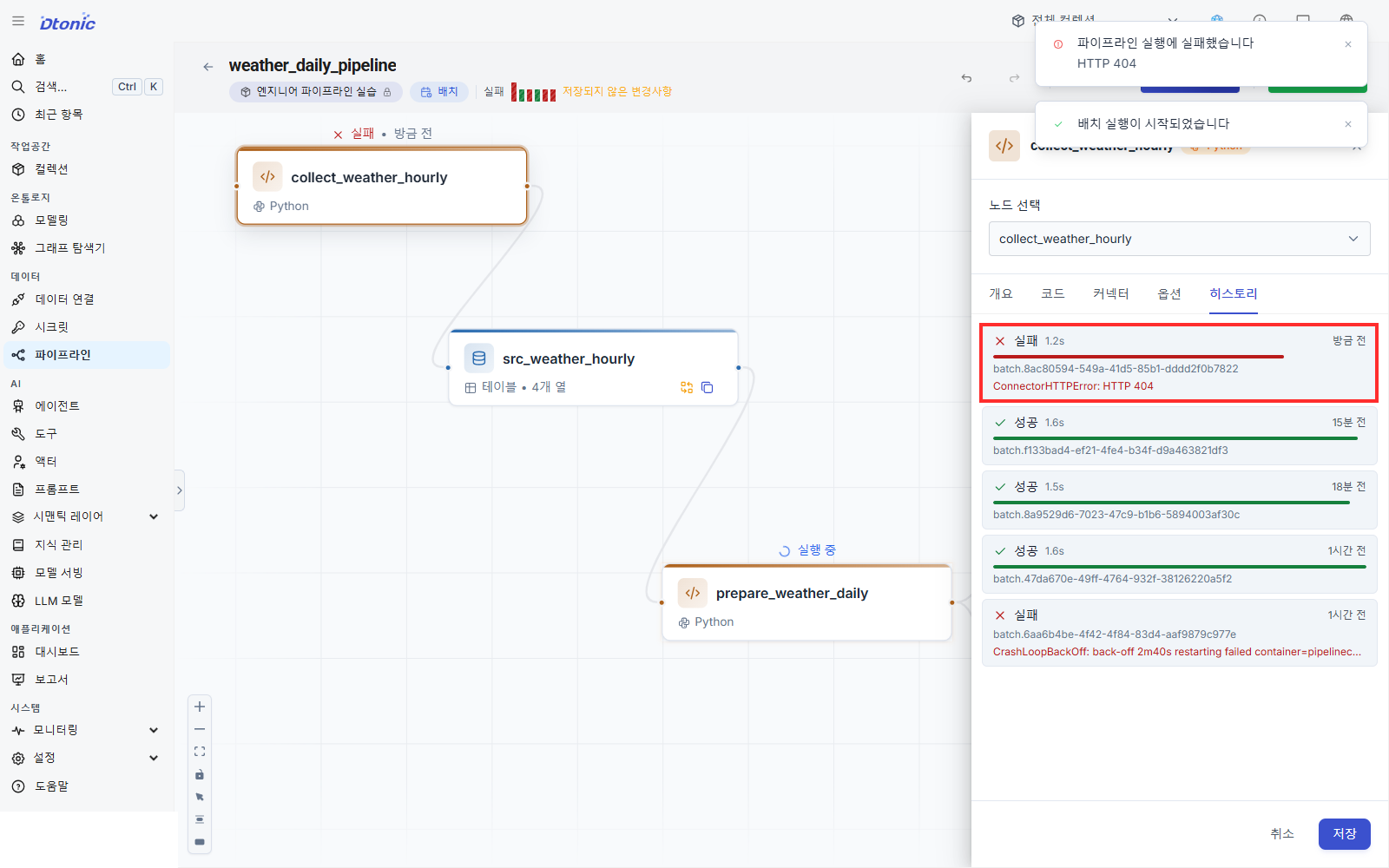
When the target server returns a 4xx or 5xx, the REST connector raises an error carrying that status code and the response body verbatim. The status narrows the cause.
| Status | Common cause |
|---|---|
404 | Path typo, or a path duplicated in the Base URL |
401 · 403 | Missing or expired credentials |
429 | Rate limit exceeded. Adjust call spacing or the schedule |
| Timeout | Target latency, or a blocked outbound path from the manager |
Because a failed node stops the ones after it, mart_weather_daily still holds the values from the last successful run. Data in the mart does not mean the latest run succeeded — check run history alongside it.
Restore and rerun everything
- Change the path back to
"/v1/forecast". - Save the code, then select Save if the pipeline has unsaved changes.
- Select Run now to execute the full pipeline again.
- Confirm the new run succeeded in run history and in the node's History.
- Open
mart_weather_dailyand confirm three daily rows are back.
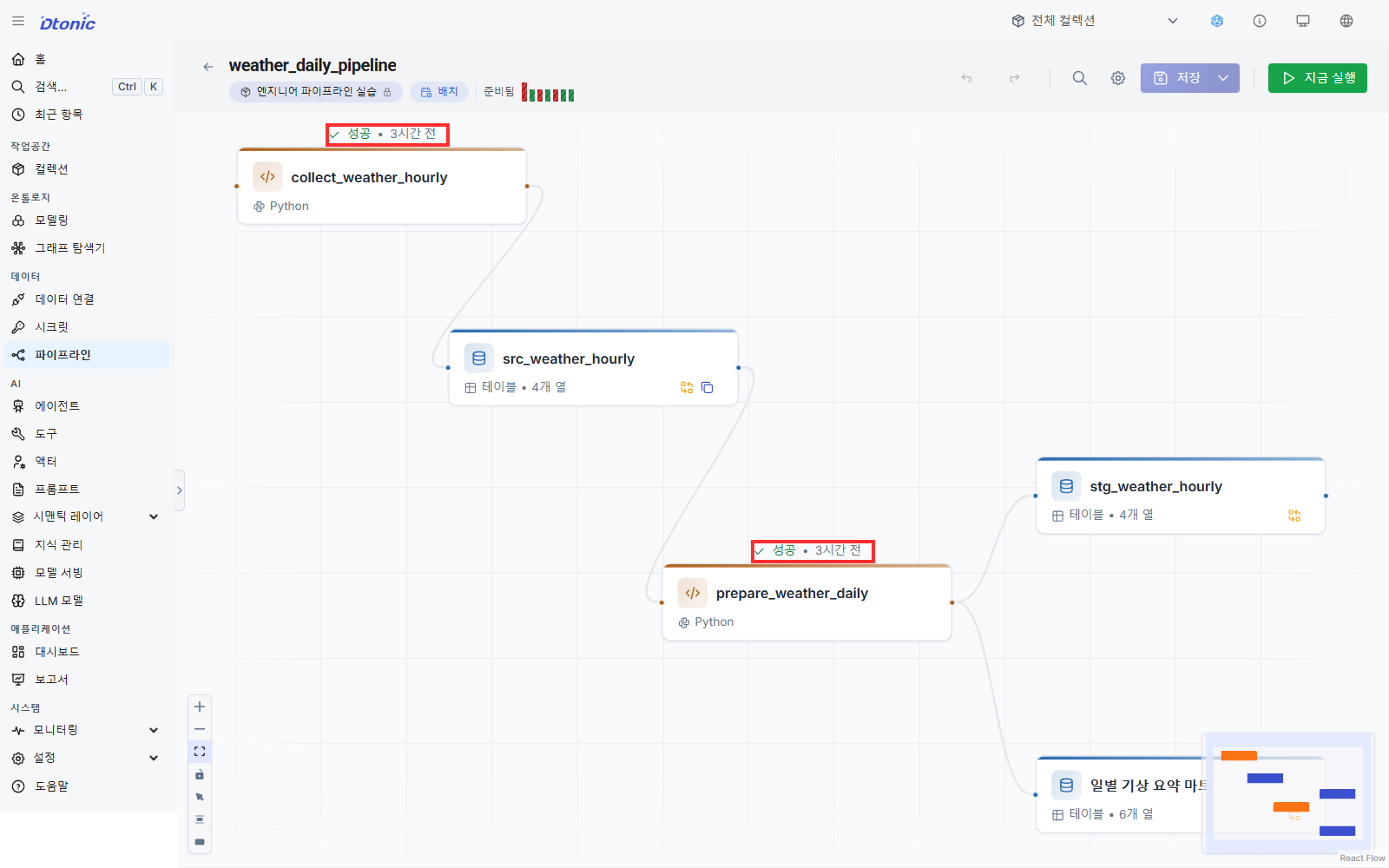
The current screen does not offer "restart from the failed node." Selecting Run now after a fix executes the full pipeline. That is safe here because ingestion is Overwrite, but check the output write mode before rerunning a production pipeline.
Put the mart on a dashboard chart
That is the engineer's half. Whether the result is actually usable shows up fastest as a chart.
- Click Dashboard in the left sidebar and choose Create dashboard.
- Select the training collection, then click Continue.
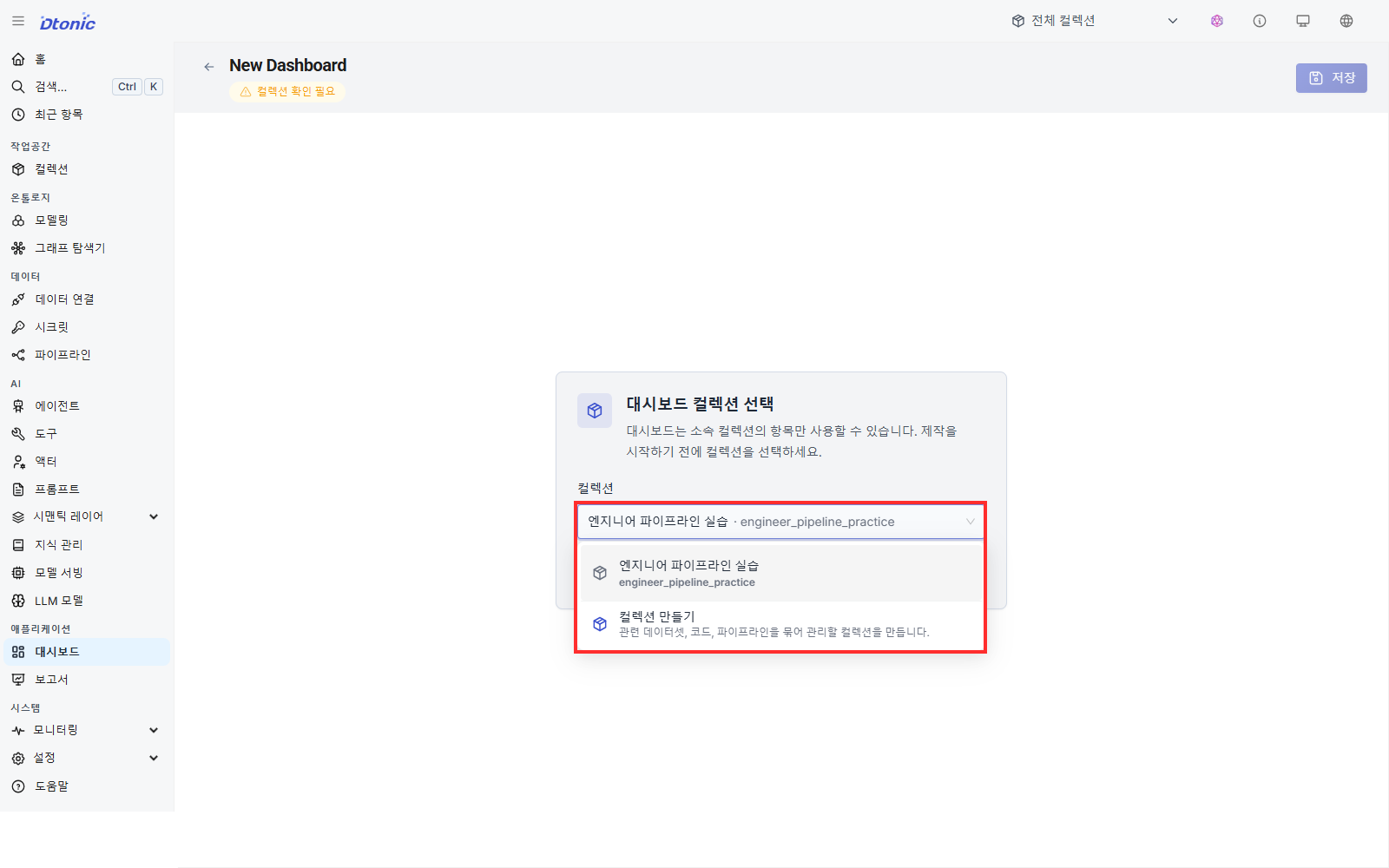
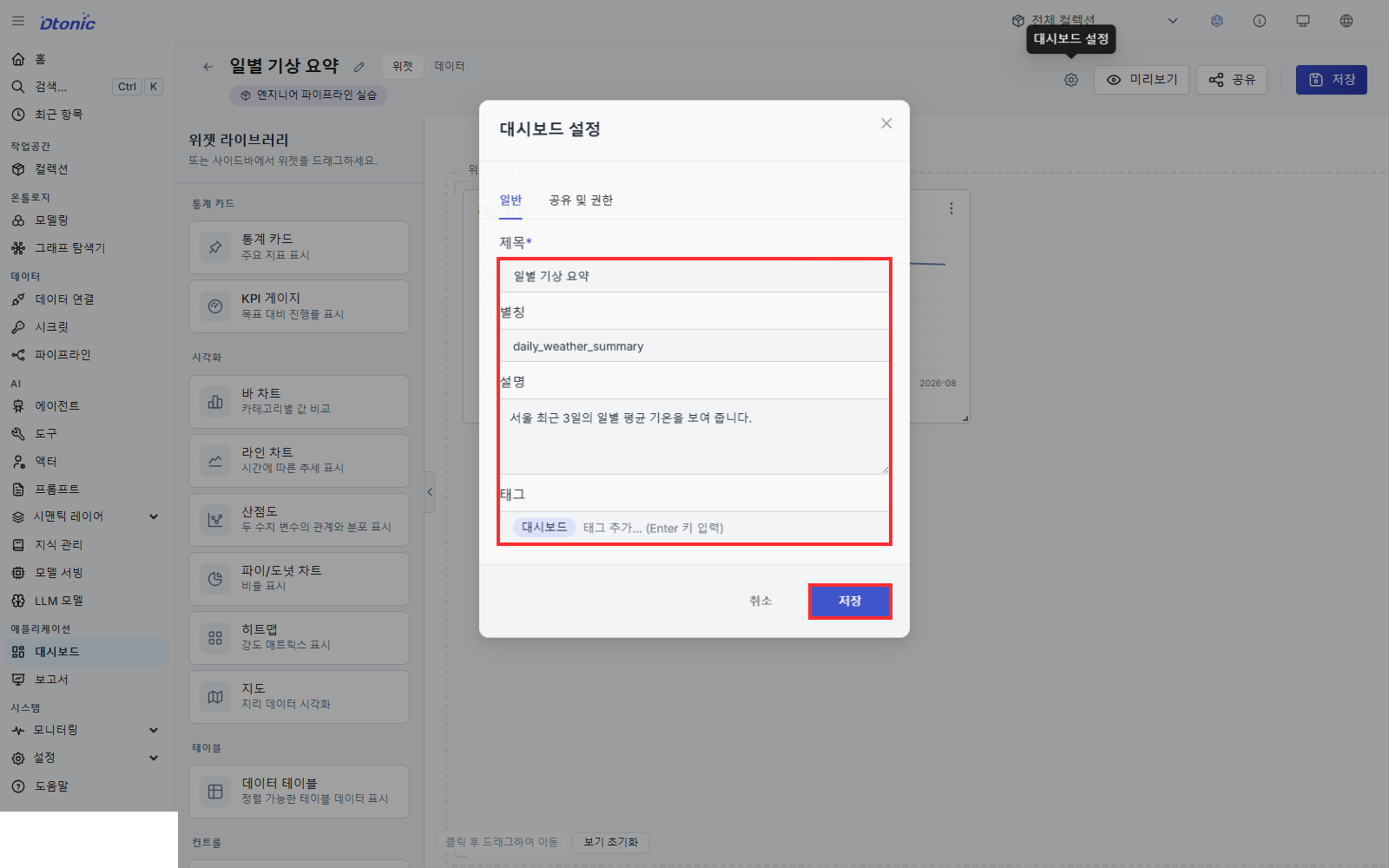
- When the empty dashboard opens, click Dashboard settings at the top.
- Enter
Daily weather summaryas the title,daily_weather_summaryas the alias, and a short description, then save the settings. The Korean production capture uses the localized title and description.
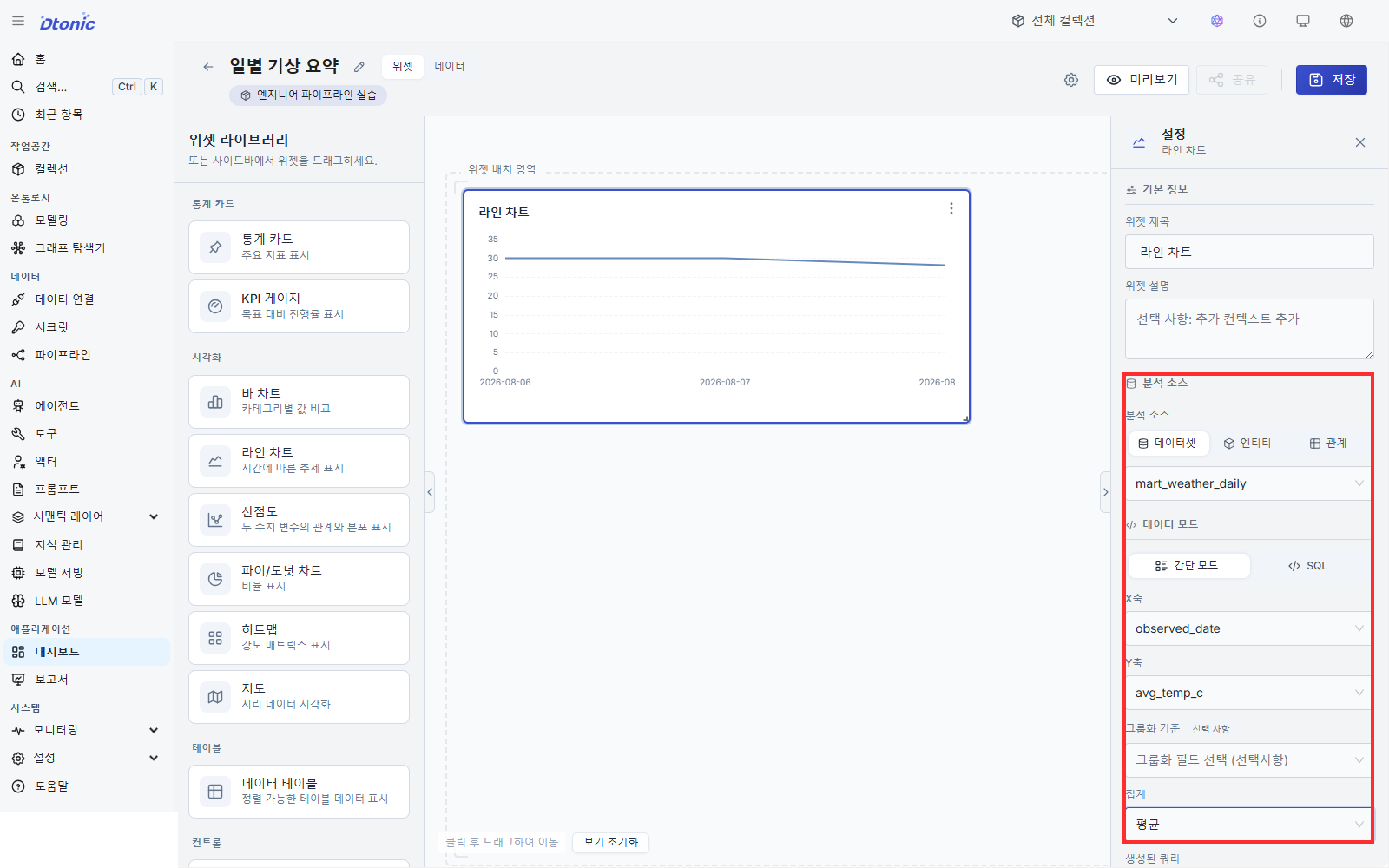
- Choose Line chart under Quick add on the empty canvas.
- In the configuration panel, set Analytics source to
mart_weather_daily. - Leave Data mode on Simple mode.
- Choose
observed_dateas the X-axis field andavg_temp_cas the Y-axis field, then select Average under Aggregation.
- Click Save in the upper-right.
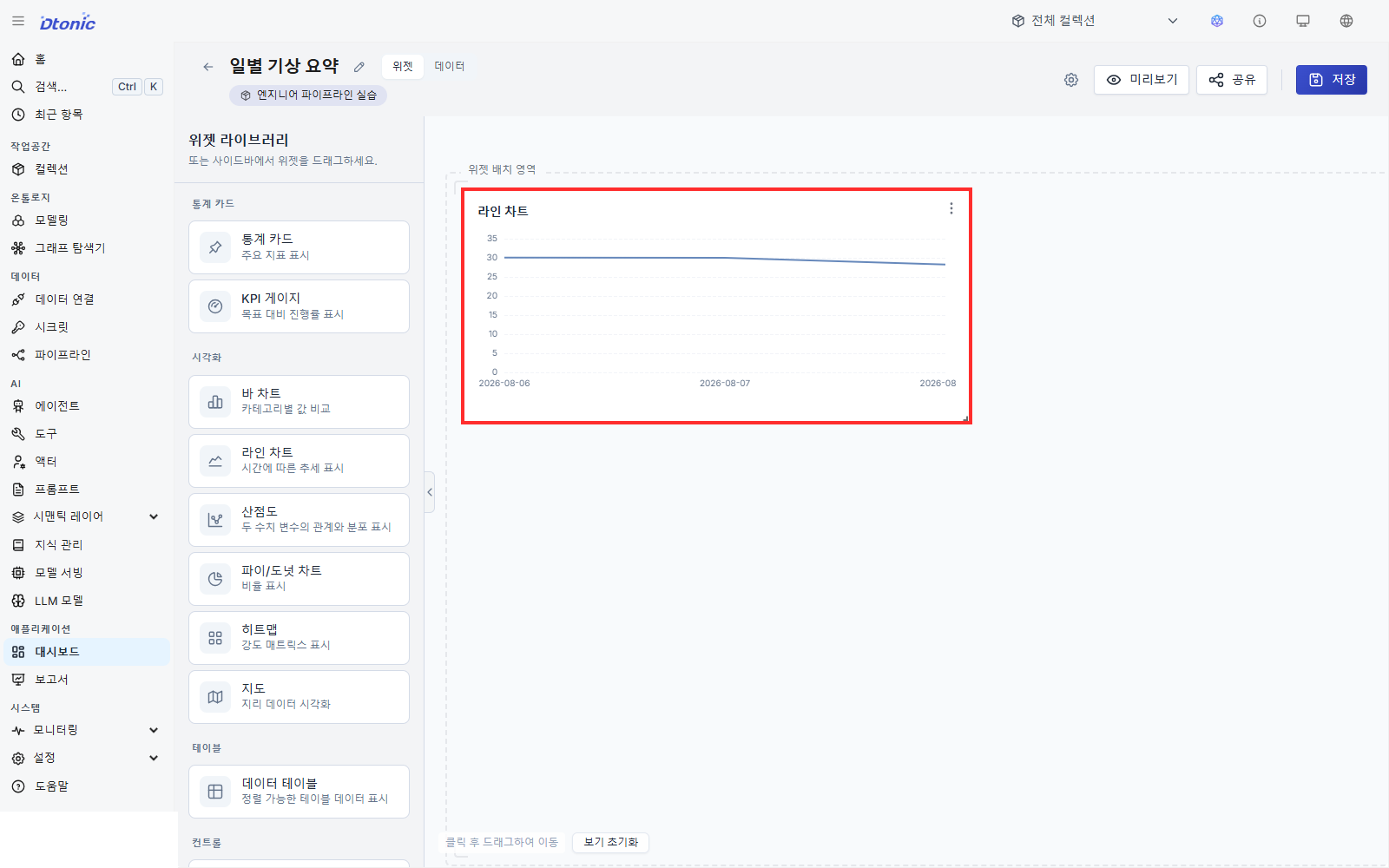
A line connects the three dates. Since the mart already holds one row per date, every aggregation returns the same value. The widget's aggregation decides how multiple rows landing on one X value get combined.
Make it legible to an analyst
A dataset name alone does not tell an analyst the units or the as-of time. Fill in the following on the mart_weather_daily detail screen.
- Alias — a recognizable name in lists, such as
Daily weather summary. - Description — units, coverage, refresh time. For example:
Daily temperature and humidity summary for Seoul · °C / % · last 3 days · refreshed daily at 03:00 KST. - Tags — business terms for search, such as
weather,daily,mart.
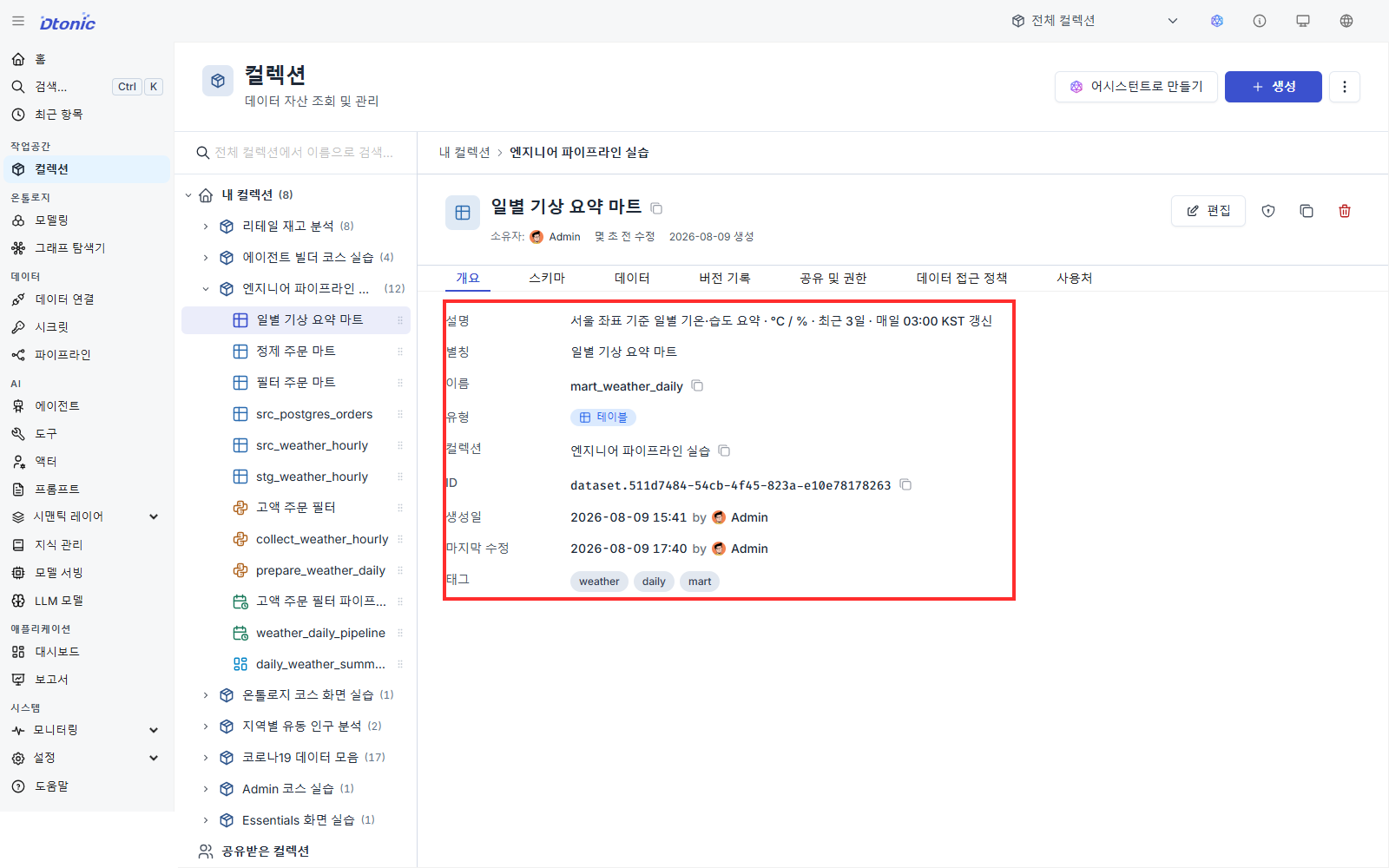
Noting on src_weather_hourly that it is the raw layer, and which API it came from, lets an analyst judge for themselves how far back to trace when a value looks wrong.
Hand off through collection permissions
- Open the training collection.
- Click Share at the top of the collection to open Sharing and permissions.
- Find the analyst user or group in the name-or-email search field.
- Select Viewer if they only need to read, then click Invite.
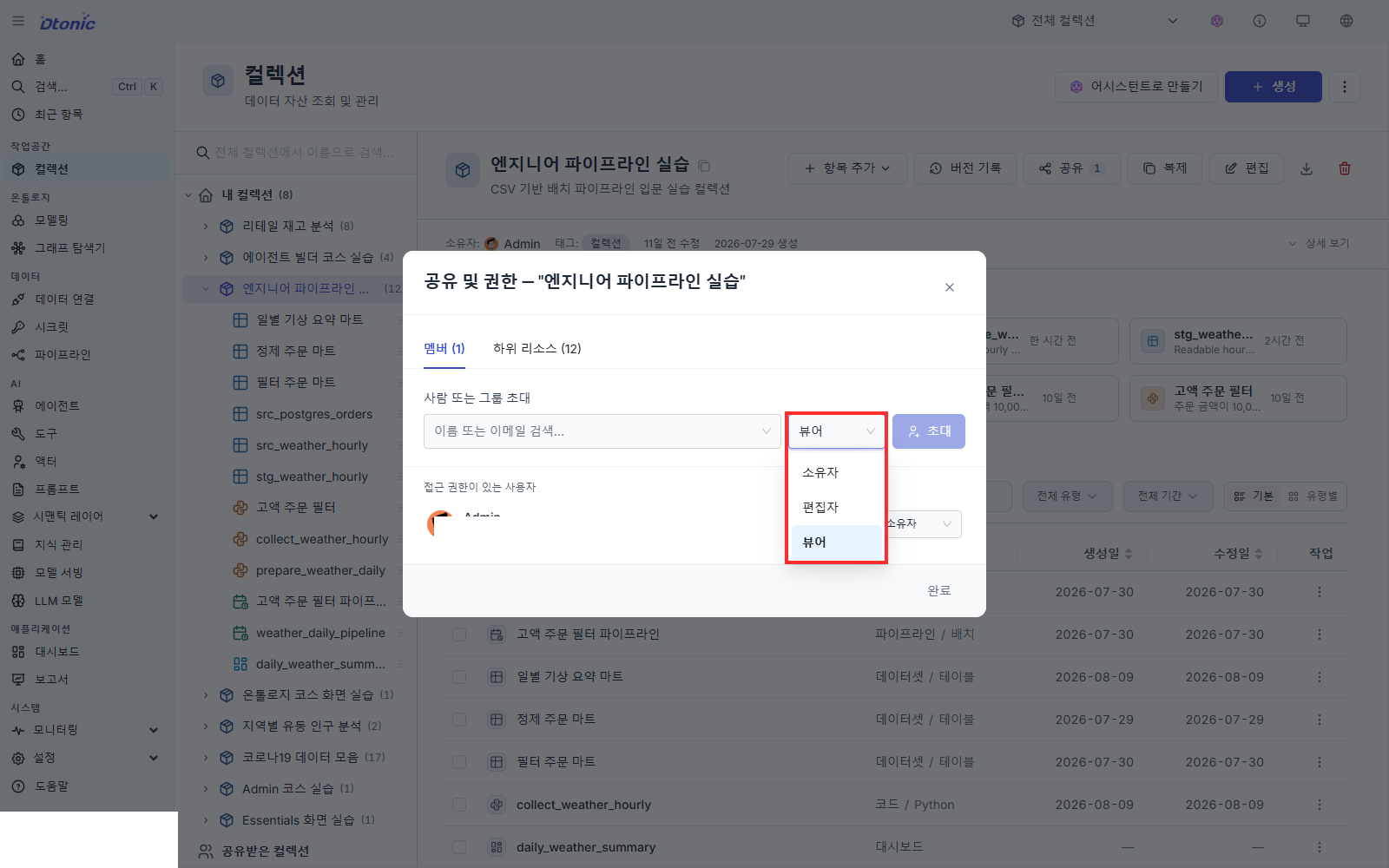
- Confirm the collection, the mart, and the dashboard are visible from the analyst's account.
Grant Editor to collaborators who must change content, and Owner only to whoever manages the collection including its permissions. Viewer is the usual starting point for an analyst who reads results and uses them in dashboards.
Connectors carry a use permission separate from ownership and editing. An analyst who only reads the mart does not need it. Grant it when another engineer has to build new pipelines on this connector.
Check yourself
- Did you work on a practice pipeline with the automatic schedule turned off?
- Did the node and the run history strip show a failed state after the deliberate break?
- Did you find status code
404and the wrong path in History? - Did you restore the code and confirm a successful full rerun?
- Is a line chart backed by the mart saved on a dashboard?
- Did you fill in the result dataset's alias, description, and tags with real operational detail?
- Did you grant the analyst user or group the minimum collection role they need?
Path complete and what's next
You have finished the Data Engineer path. Your training collection holds one connector, three datasets, two code assets, one pipeline, and one dashboard, and it refreshes itself daily.
You connected an external API, landed a raw layer, cleaned and aggregated it into a mart, attached automation and failure diagnosis, and handed the result to someone else. In real work the subject changes; the sequence does not.
- Retail Inventory Intelligence — Practice the engineer and analyst halves connected inside one scenario.
- Quick scenario import (advanced, 10 min) — Pull a
dhub2-examplesscenario into your own environment. - Analyst Path — Start from the chart you just built and extend it with filters, query mode, and sharing.
Check that every lesson is marked complete, then pick your next course from Continue learning on the home page.
Before you finish
Use these questions to check whether you achieved this lesson's goal.
- Can you repeat ‘Diagnose a failure and hand off through a dashboard’ without following the instructions?
- Can you name at least one place to check when the result differs from what you expected?