Review recently modified items and version history
What you will learn
Find modified assets in Recents and understand how version history differs from an audit log.
During operations, you often need to find assets that changed recently. D.Hub Recents is a discovery page that gathers accessible assets by their last-modified time.
Recents is not an audit event log that records who performed each action. In this lesson, you will distinguish what Recents actually shows from the information available in a separate Version History tab.
D.Hub currently has no general-purpose audit or access log screen where an administrator can review user and permission changes, sign-ins, asset operations, and data views or downloads in one place. If your organization operates a separate audit system, use those records instead.
Open Recents
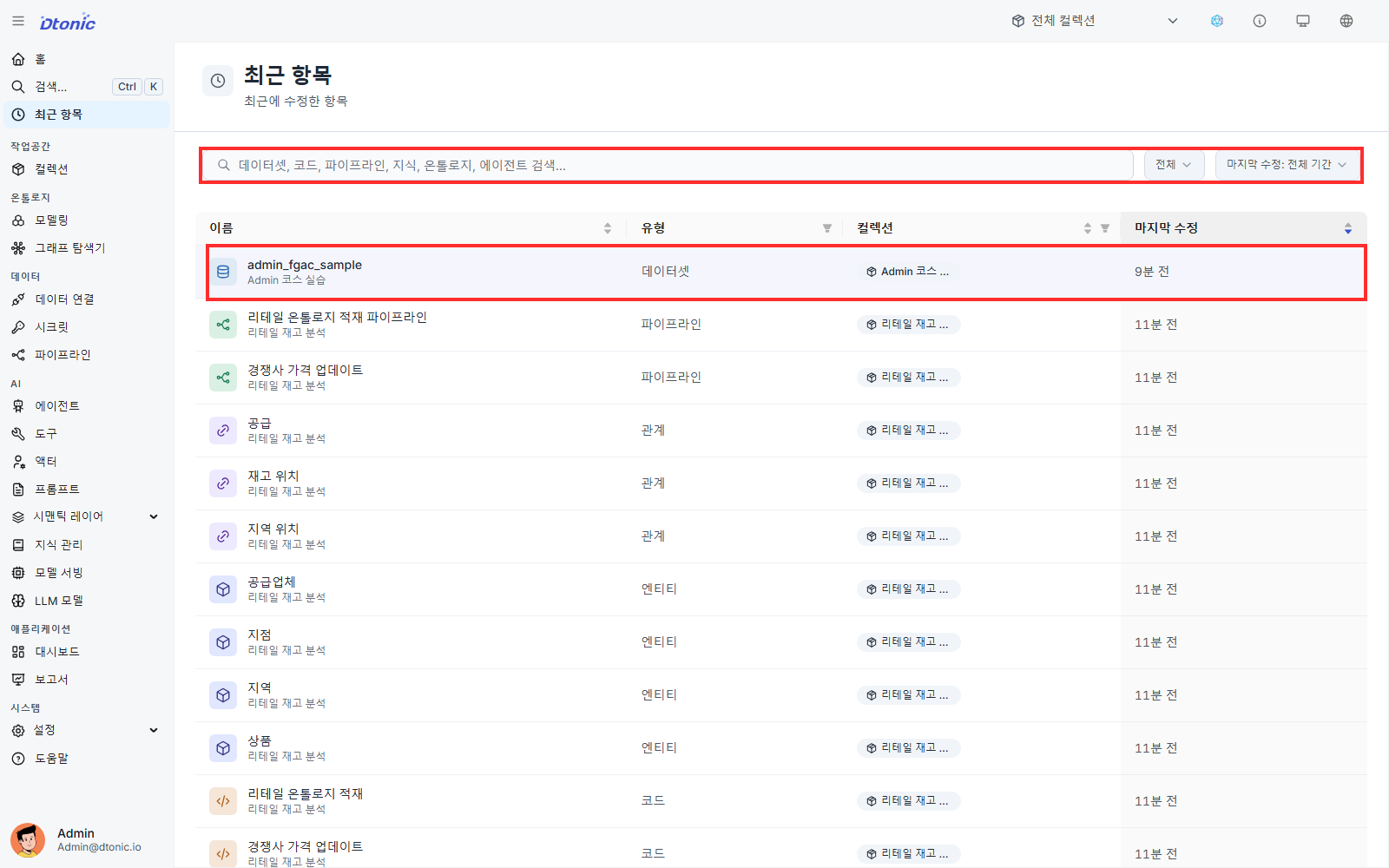
Select Recents in the sidebar. The table contains these columns:
| Column | What it shows |
|---|---|
| Name | Asset name and collection |
| Type | Dataset, code, pipeline, knowledge, entity, relation, or agent |
| Collection | The collection containing the asset |
| Last Modified | Relative time of the latest modification |
Select a row to open that asset's detail or edit page.
Narrow the list
- Enter an asset or collection name in Search.
- Select one or more asset types under Type.
- Under Last Modified, choose All time, Within 24 hours, or Within 7 days.
- You can also use the table's Collection column filter to show one collection.
For example, to find datasets modified today, select Datasets as the type and Within 24 hours as the time range.
What Recents does not show
Recents does not contain:
- The user who performed the change
- An action type such as create, update, delete, grant, or revoke
- Before-and-after values
- Data access events such as views or downloads
- User and action filters or saved filter favorites
Deleted assets and permission changes are not recorded as independent event rows either. Do not use this page as compliance evidence or a security access log.
Review version history for supported assets
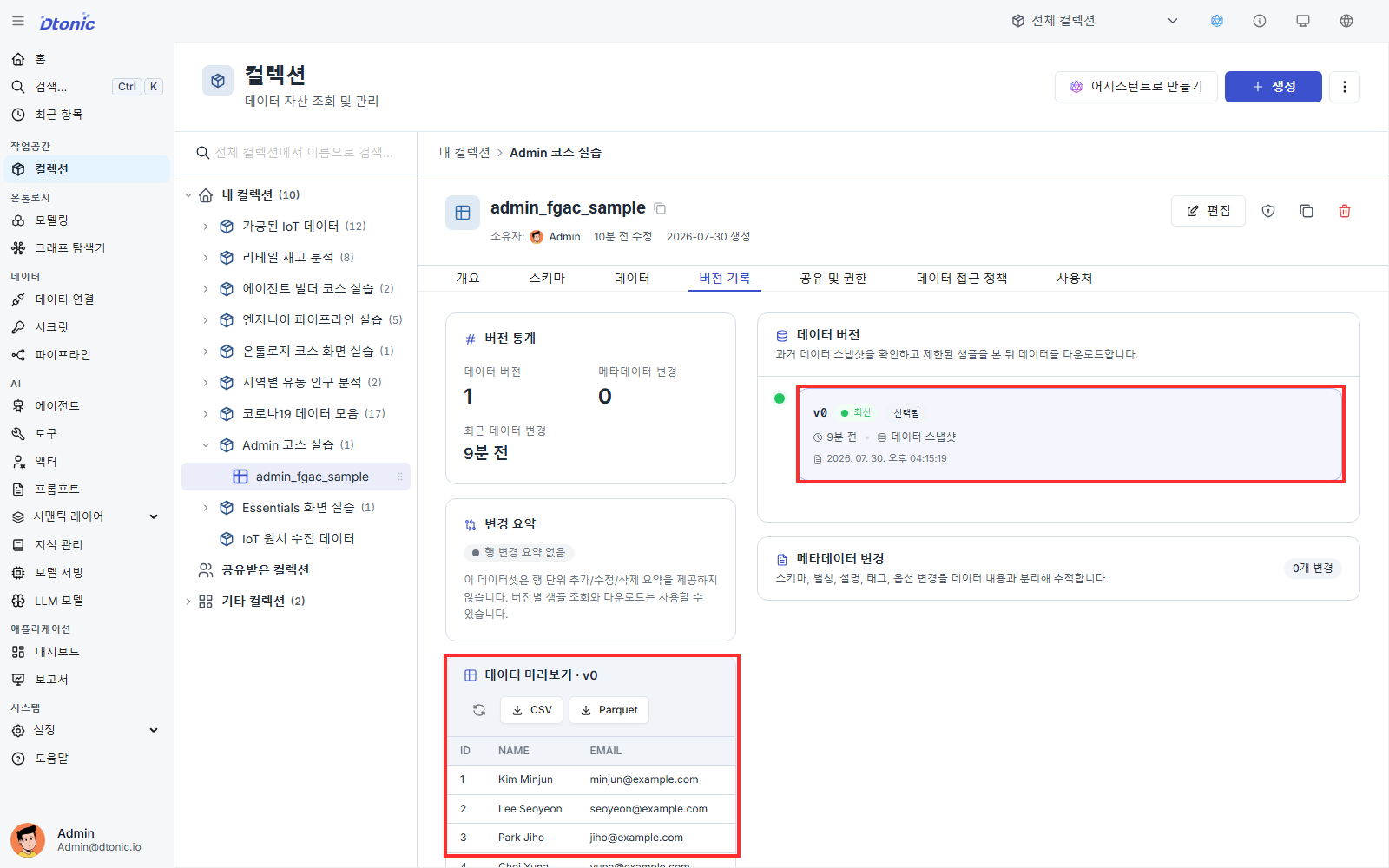
Assets that provide a Version History tab let you inspect earlier saved states. The fields shown and the availability of preview or restore depend on the asset type and when the version was recorded.
- Select the target asset from Recents.
- Open Version History on its detail page.
- Check the version number, time, and author when one was recorded.
- For a dataset, distinguish the Data Versions and Metadata Changes sections.
Under Data Versions, you can preview a limited sample of past data and download it as CSV or Parquet. D.Hub does not restore a past data version as the current dataset.
Under Metadata Changes, you can preview saved fields such as alias, description, and tags and compare them with the preceding version. When an earlier entry has a stored snapshot, you can restore its metadata; that restoration is recorded as a new version. Older entries without author or snapshot information may omit the author or disable preview and restore.
Version History shows saved states of that asset; it is not a log of every user action. FGAC policies do not provide policy version history or restoration either.
Choose the correct surface
| Question | Where to look |
|---|---|
| Which datasets changed recently? | Type and time filters in Recents |
| What was an earlier saved state of this code or pipeline? | The asset's Version History |
| What subject, masks, and row conditions does a policy have now? | Data Access Policies in the dataset |
| Who granted permission or queried data? | Not available in Recents; use your organization's separate audit or access logs |
Self-check
- Filtered Recents by asset type and last-modified range.
- Can explain that its four columns are asset-discovery information.
- Opened Version History on a supported asset and distinguished the operations available for data versions and metadata changes.
- Understand why Recents must not be treated as a user-activity audit log.
You completed the Administrator path
This path covered permission inheritance, SSO user and group registration, dataset FGAC policies, safe policy verification, and the difference between recently modified assets and version records.
Continue according to your work:
- Agent Builder Path: Combine AI tools and actors into an agent workflow.
- Review refunds with AI recommendations and human decisions: Follow a refund-handling scenario with human approval.
Before you finish
Use these questions to check whether you achieved this lesson's goal.
- Can you repeat ‘Review recently modified items and version history’ without following the instructions?
- Can you name at least one place to check when the result differs from what you expected?