Tools, connectors, and knowledge integration
What you will learn
Connect tools and data access, then add a knowledge base so the agent has the execution resources it needs.
An agent usually needs more than its own reasoning. In this lesson, you define reusable tools, connect data access, and attach a knowledge base so the agent can retrieve and act with the right context.
Manage the tool list
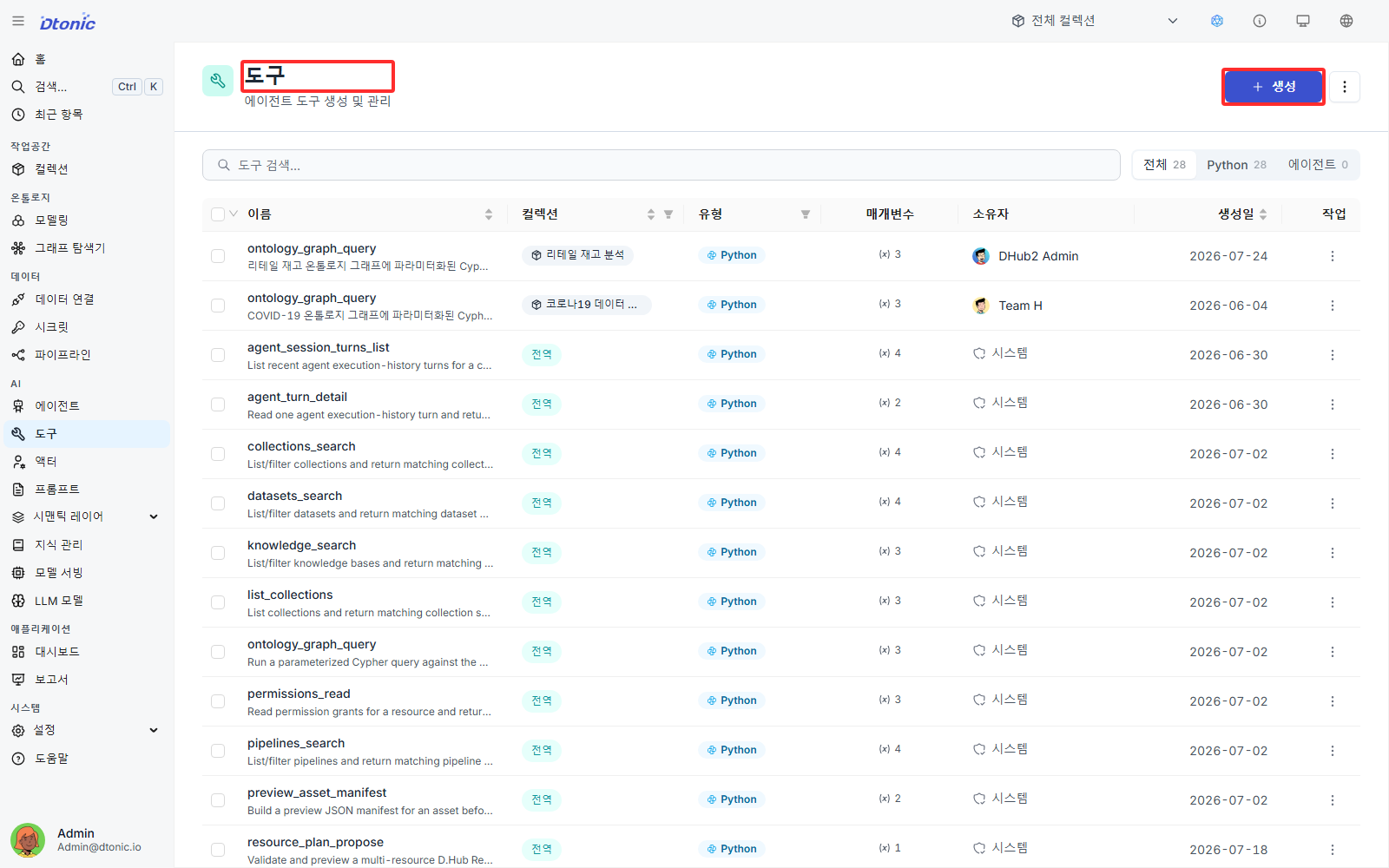
Open Tools in the left sidebar to review reusable custom tools and click Create to add a new one.
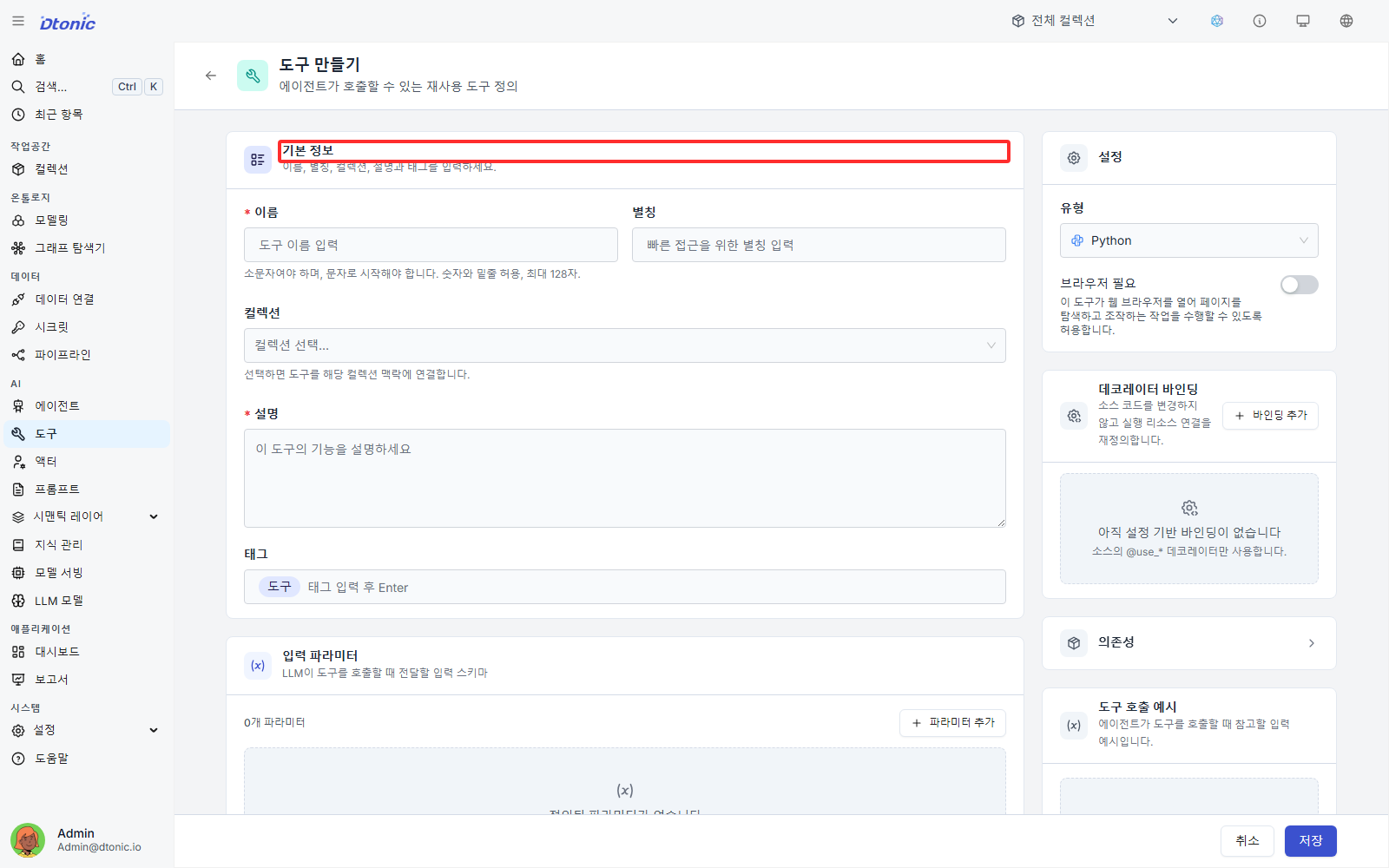
Fill in tool metadata
Enter the tool's unique English name, display alias, and description of its purpose.
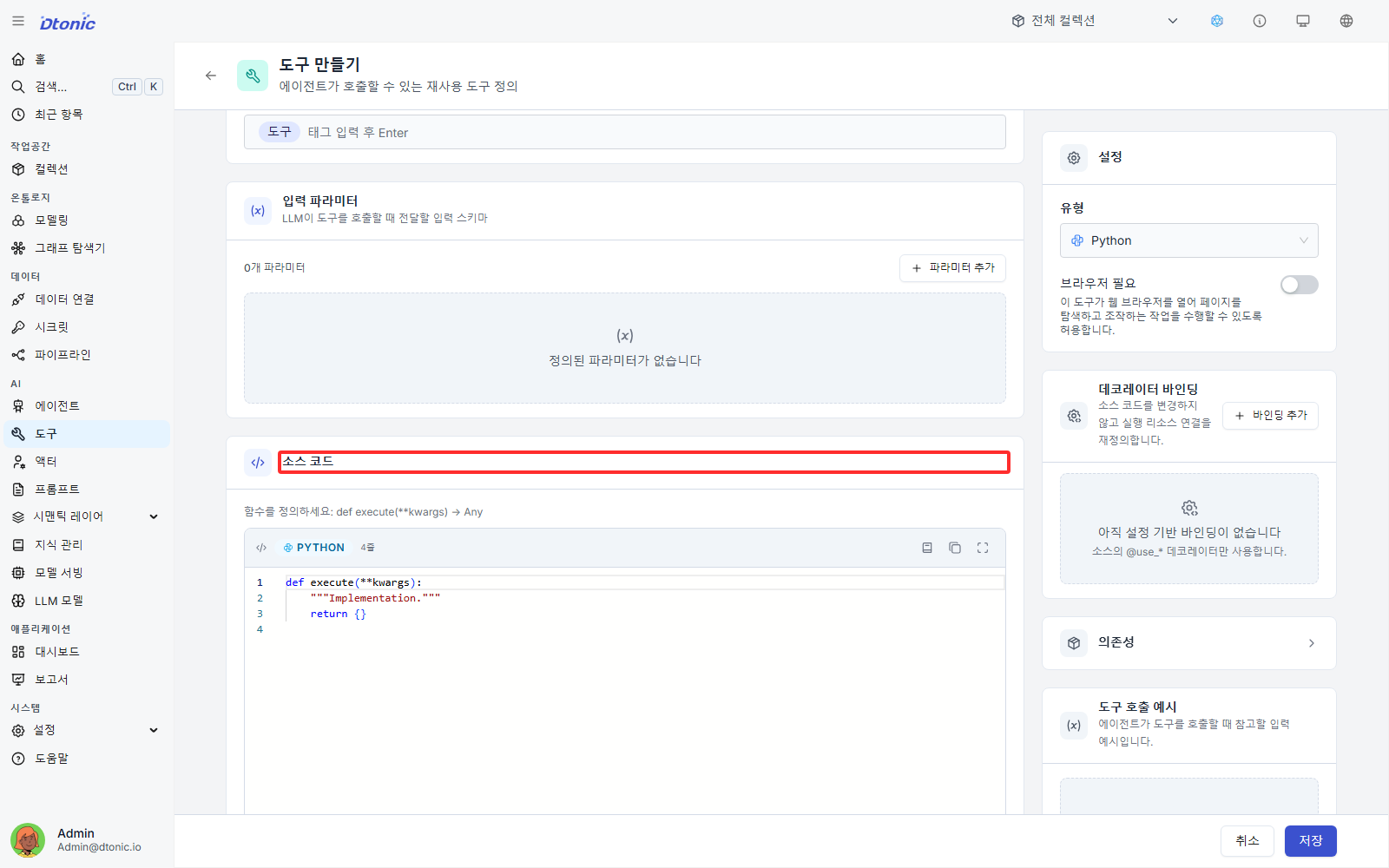
Set the execution type and target
When creating the tool, choose its type and either enter source code directly or connect an execution target. Two common patterns are:
- Python: run a Python function you wrote. This is useful for custom logic such as database queries or external API integrations.
- Agent: call a subordinate agent as a tool. This is useful for a multi-agent structure where a specialized agent handles a narrower task.
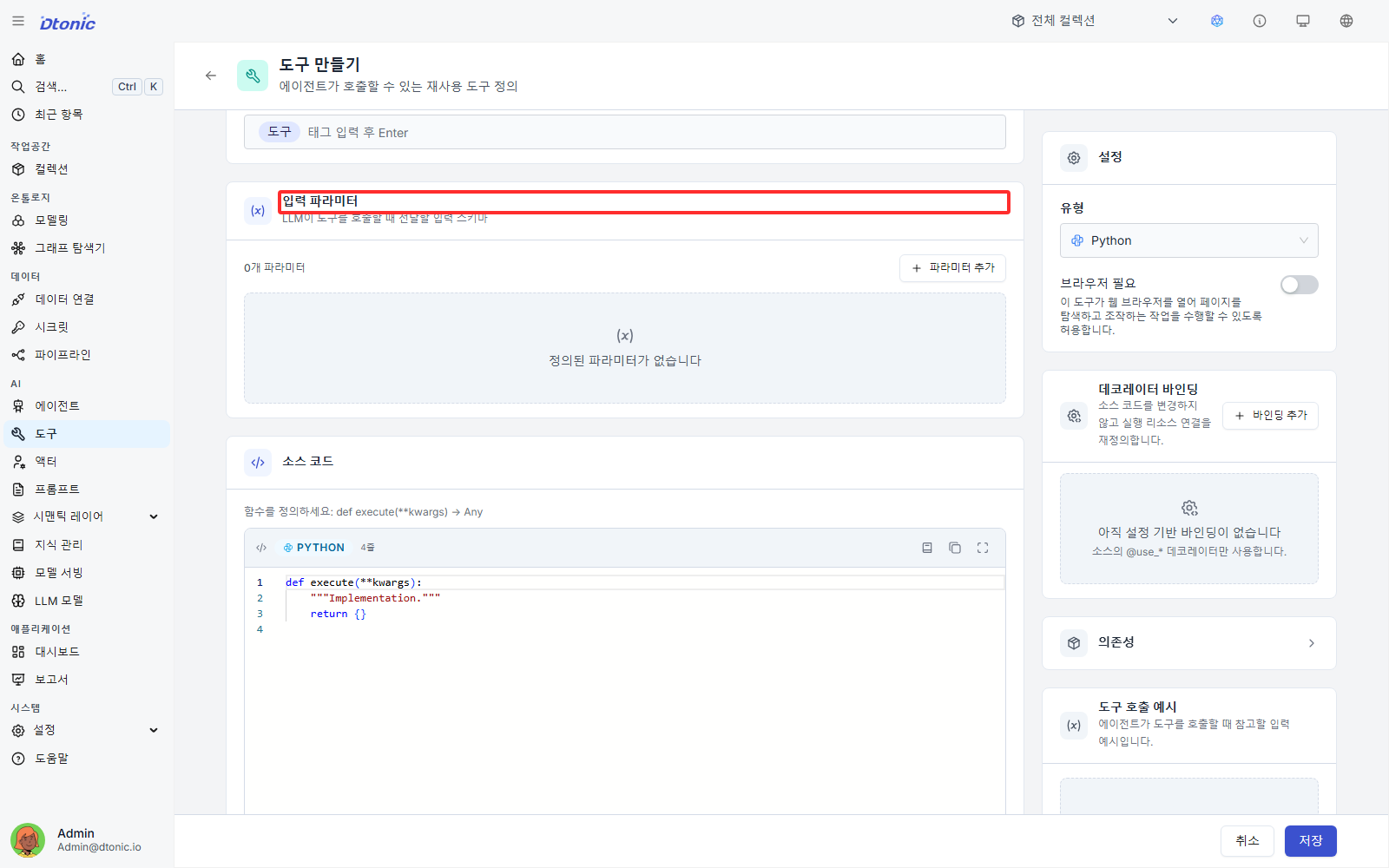
Define input parameters and connect a data source
For code-based tools in particular, define the input parameter schema carefully so the AI can pass the right values extracted from a conversation. For example, you might define a keyword field for a search term. Then attach the data connection the tool will reuse during execution.
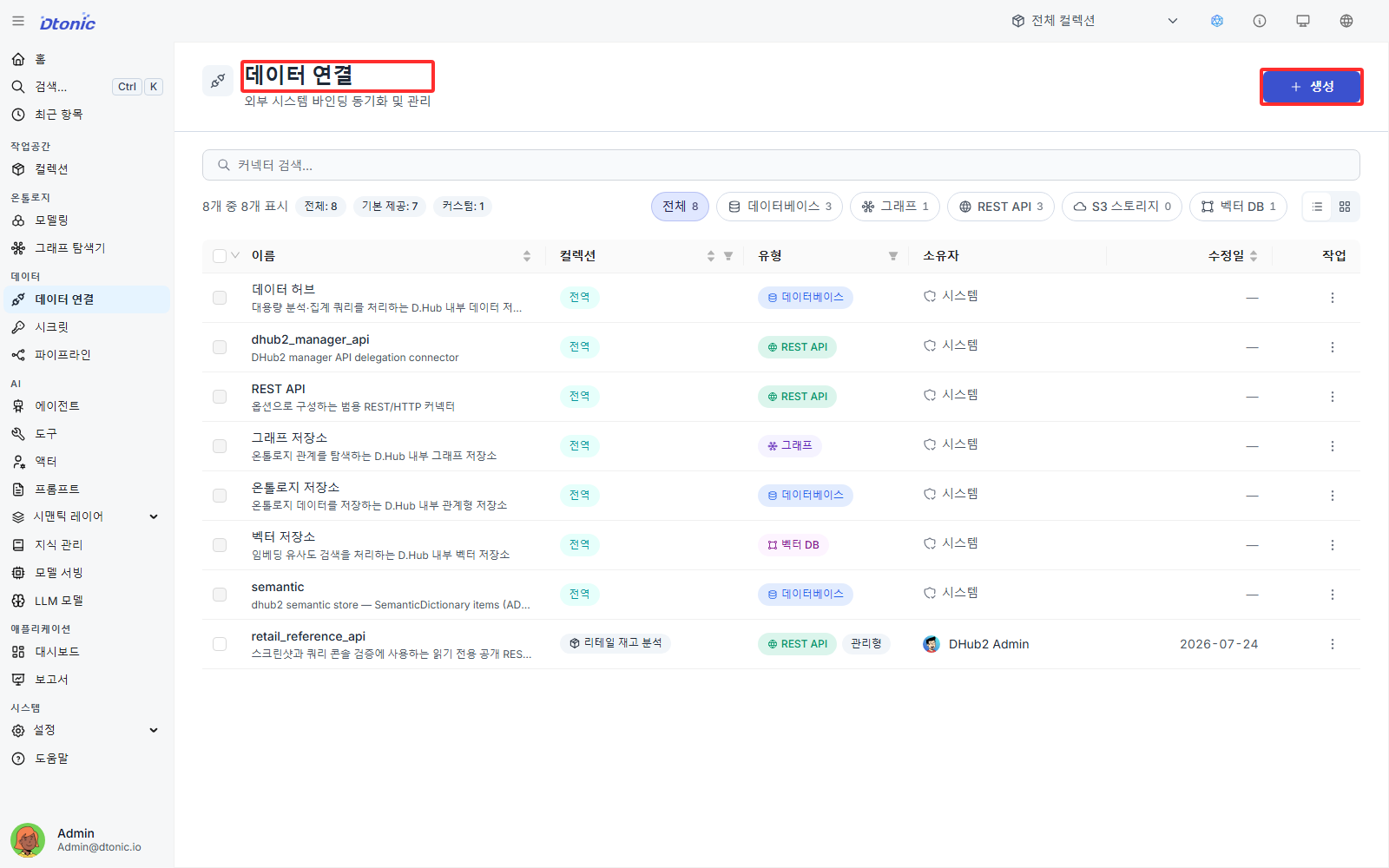
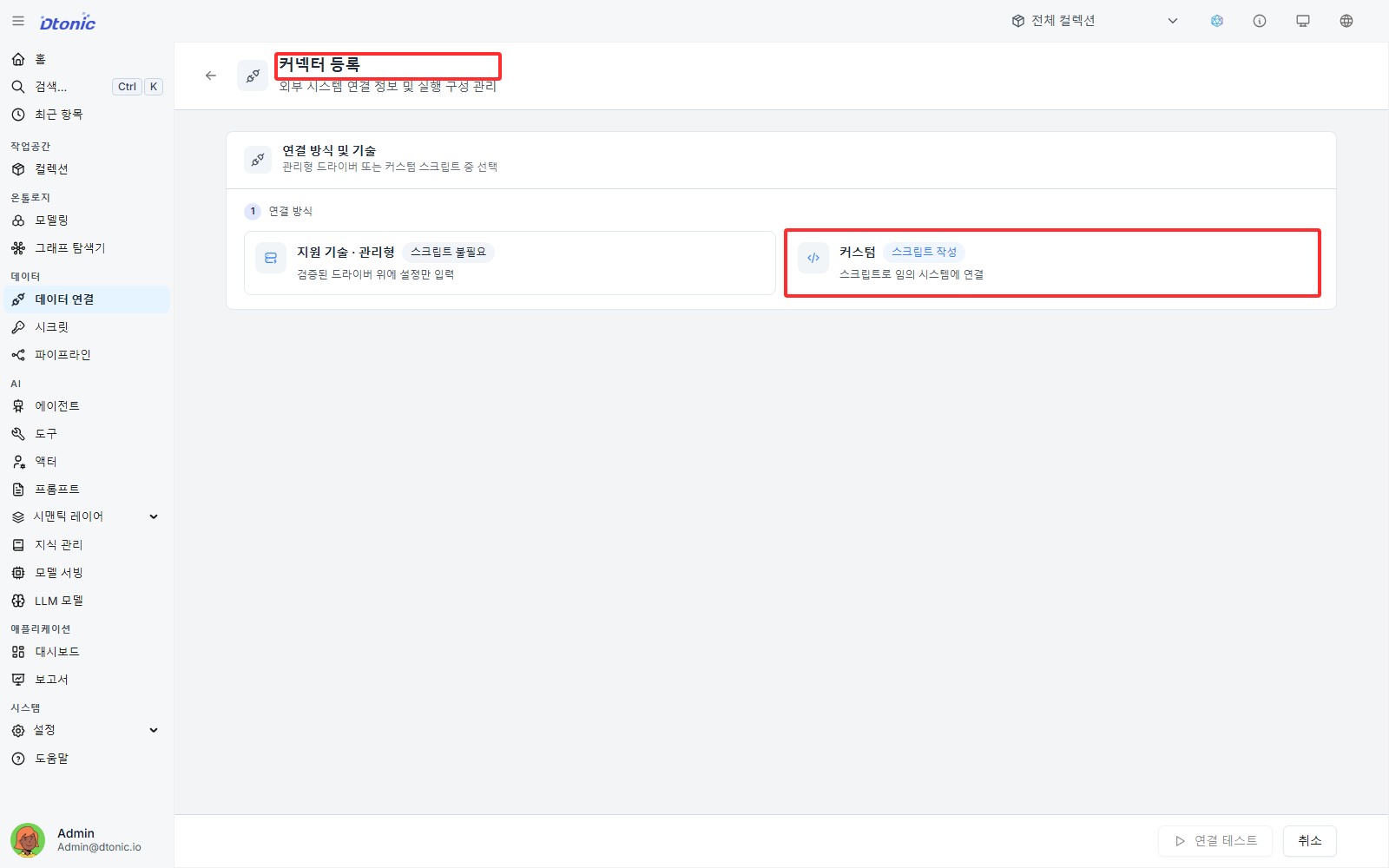
Review data connections and create a connector
Review the registered data connections, then choose a connector type such as database, graph data, web API, or S3 storage. You can start from a standard connection template or extend a script-based connection so both tools and pipelines can reuse the same access path.
Add a knowledge base for RAG
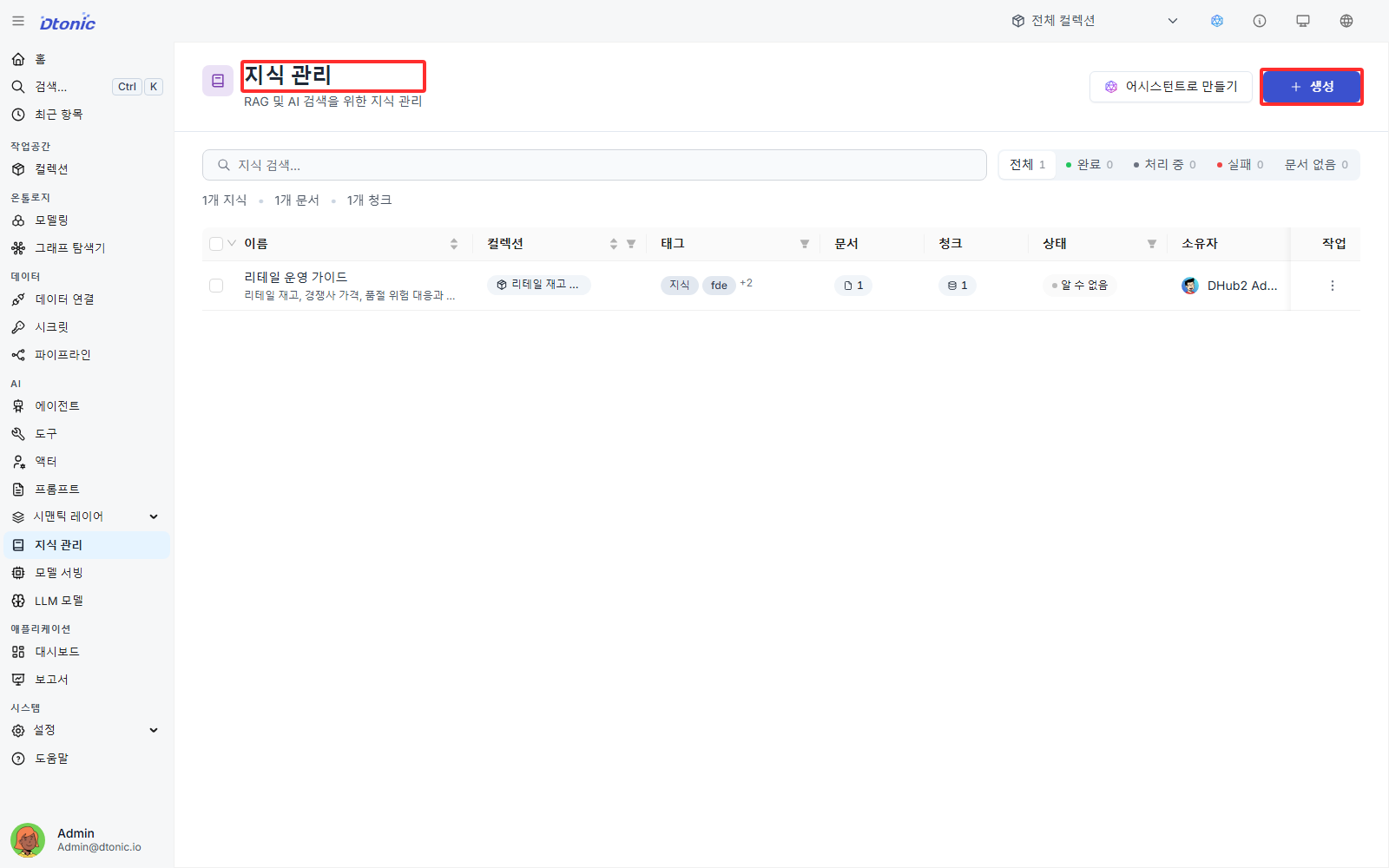
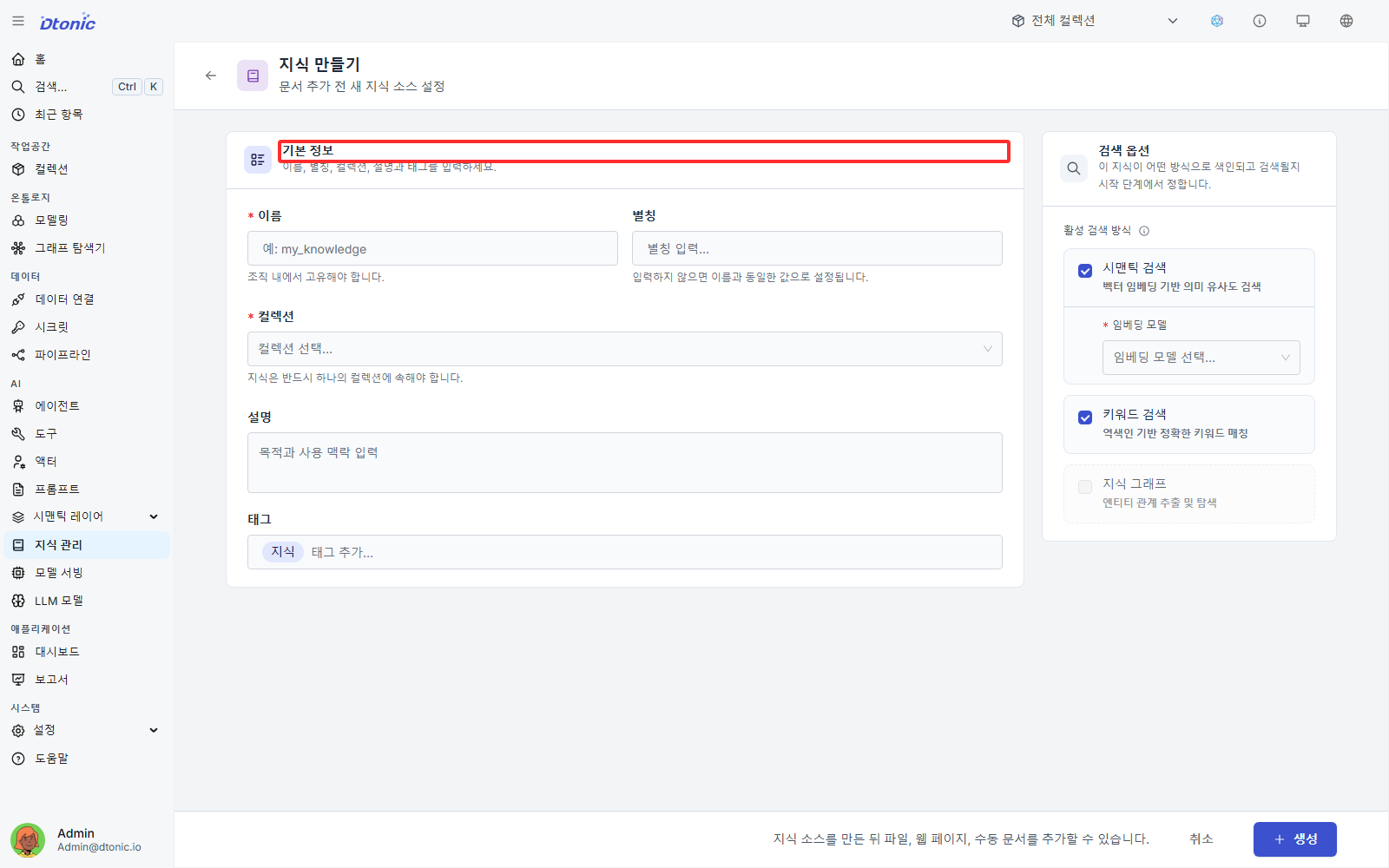
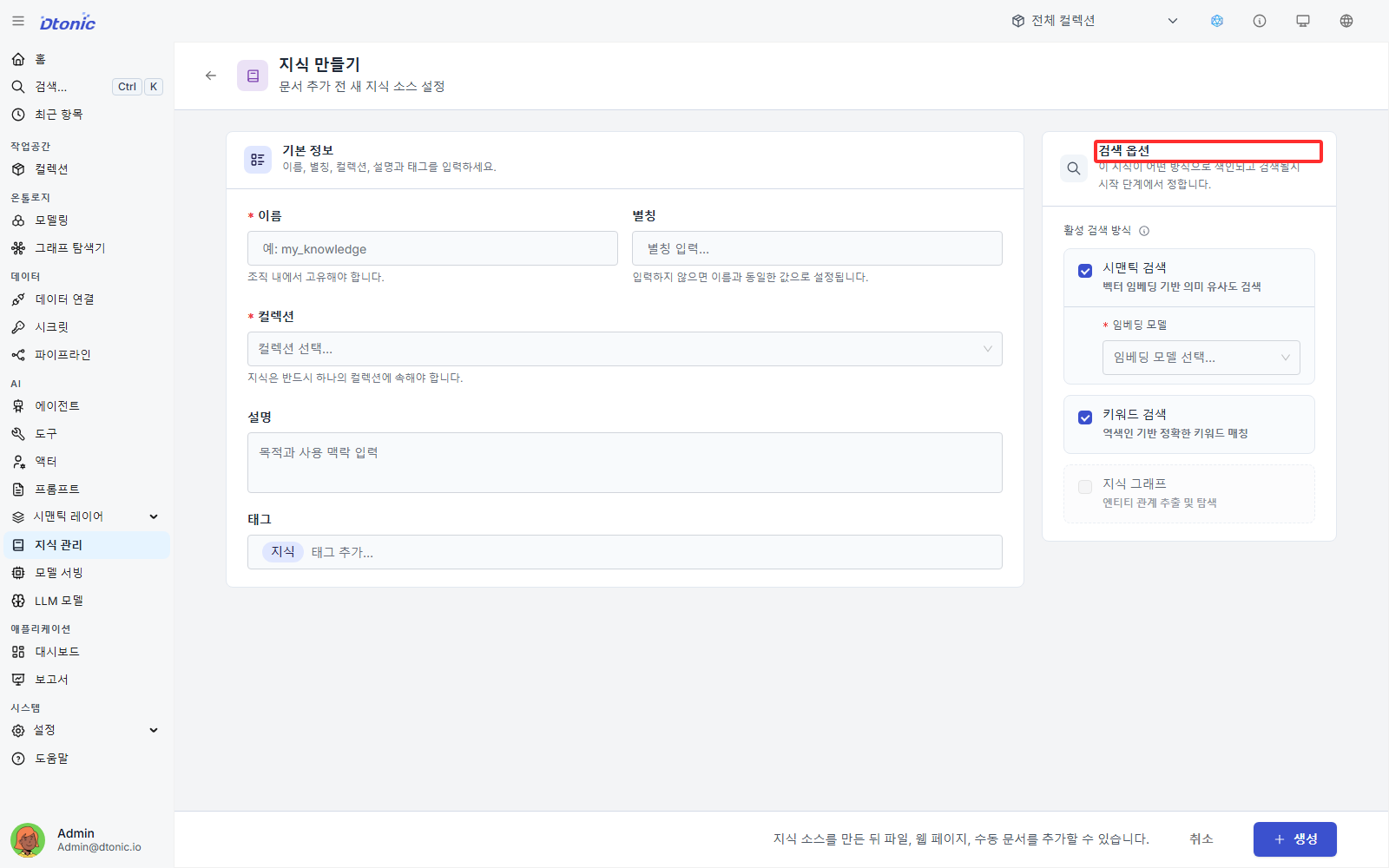
Once the tool and connector setup is done, create a new knowledge resource so the agent can search internal documents and unstructured materials. Enter the alias, target collection, and description, then choose the retrieval mode.
Choose a retrieval mode
Before you build the knowledge base, decide how the agent should find documents.
- Semantic search: finds documents with similar meaning and context through embeddings. Use it when wording may vary but the intent is similar.
- Keyword search: finds documents based on exact term presence. Use it when fixed terminology, codes, product names, or policy names must match precisely.
- Hybrid search: combines semantic and keyword search. This is the default choice when you need both meaning-based retrieval and exact term matching.
Add documents and configure chunking
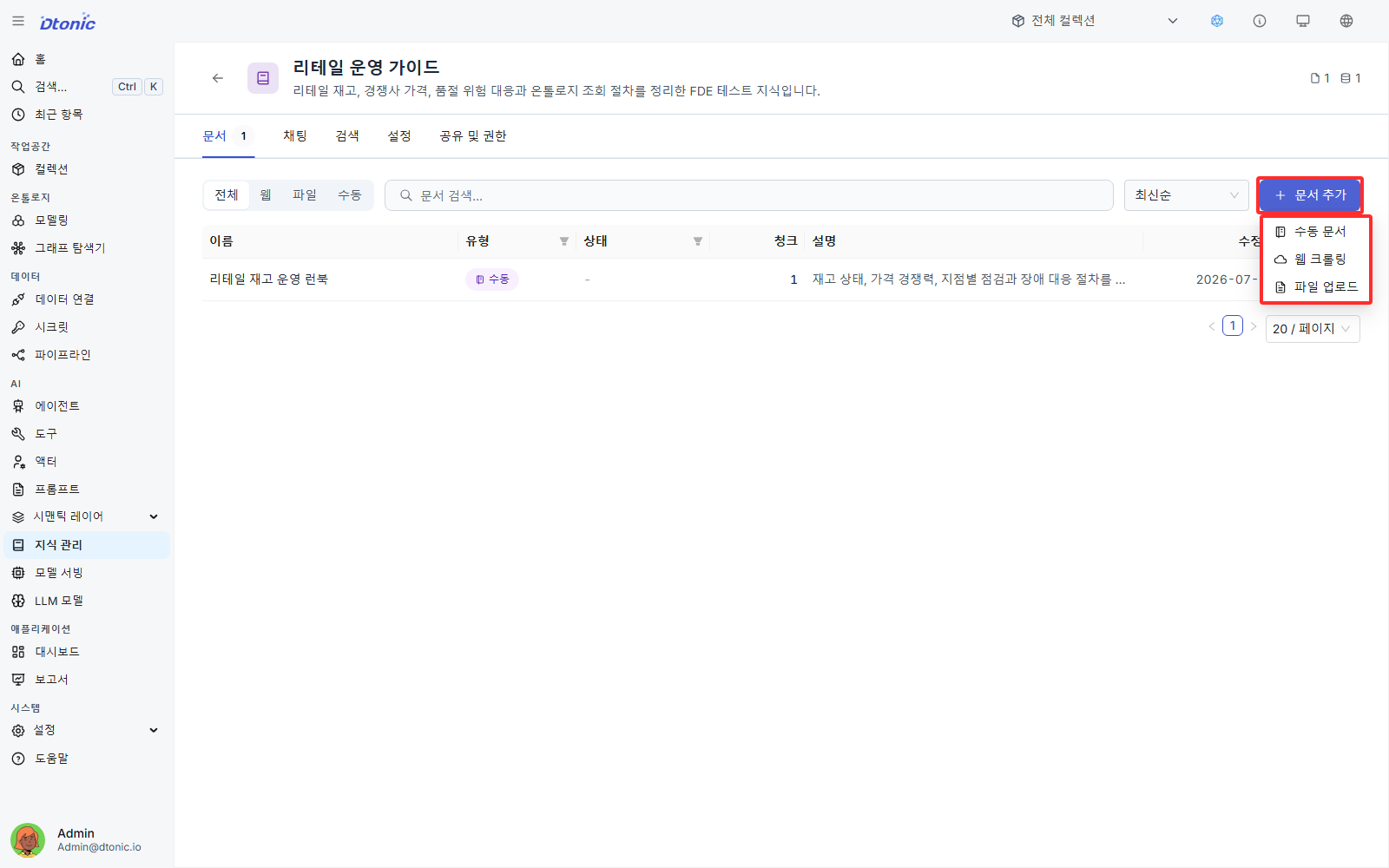
After creating the knowledge base, click Add Document and choose one of manual document entry, web crawling, or file upload. Then set the chunking strategy so the agent has a workable retrieval path during conversation.
Next lesson
In the final lesson, you deploy the agent and verify the whole flow in chat.
Before you finish
Use these questions to check whether you achieved this lesson's goal.
- Can you repeat ‘Tools, connectors, and knowledge integration’ without following the instructions?
- Can you name at least one place to check when the result differs from what you expected?