Column and row masking — from FGAC policy authoring to rollout
When collection permissions aren't enough, hide specific columns and rows differently per user or group. The operational flow to author, test, and roll out a single fine-grained policy.
One-line summary — Collection permissions answer "can this user see this dataset?". Policies (FGAC) layer "which columns and rows can they see?" on top, per dataset. One policy is configured for one subject (a user or a group).
By the end of this tutorial
- Add an FGAC policy as an admin or dataset owner.
- Verify masking and row filters with a separate standard-user account.
- Explain how a policy differs from dataset access permission.
Prerequisites
- The delete permission on the dataset (typically Owner) where the policy will live. Without it, the Data Access Policies tab opens read-only.
- The users and groups that will receive the policy must already be registered in portal. Test with a non-admin who is not the dataset owner: admins and dataset owners bypass data access policies and see the original data.
- An agreed one-line definition of how the masked result should look to the analyst. Policies change data semantics, so before rollout which columns turn into NULL and which rows pass through should be unambiguous.
1. One policy = one subject — a single-paragraph design note
When designing a policy, pick one subject (a user or a group) first and then define both axes — columns to hide and rows to allow — for that subject in one go. To apply the same logic to a different subject, add a separate policy. A user's own and group row filters are combined so all applicable filters must pass; when more than one mask targets a column, the stronger mask wins.
| Decision | Recommended starting point |
|---|---|
| Whom to constrain | Group first. Per-user policies only as exceptions. |
| How many column masks | Within a single policy, one row per concern area (PII / financial / location). When areas mix, splitting into multiple policies lowers review cost. |
| Whether to apply a row filter | If analysts only need to see their own department's data, group + one row filter is the most natural pattern. |
2. Add a policy (3 min)
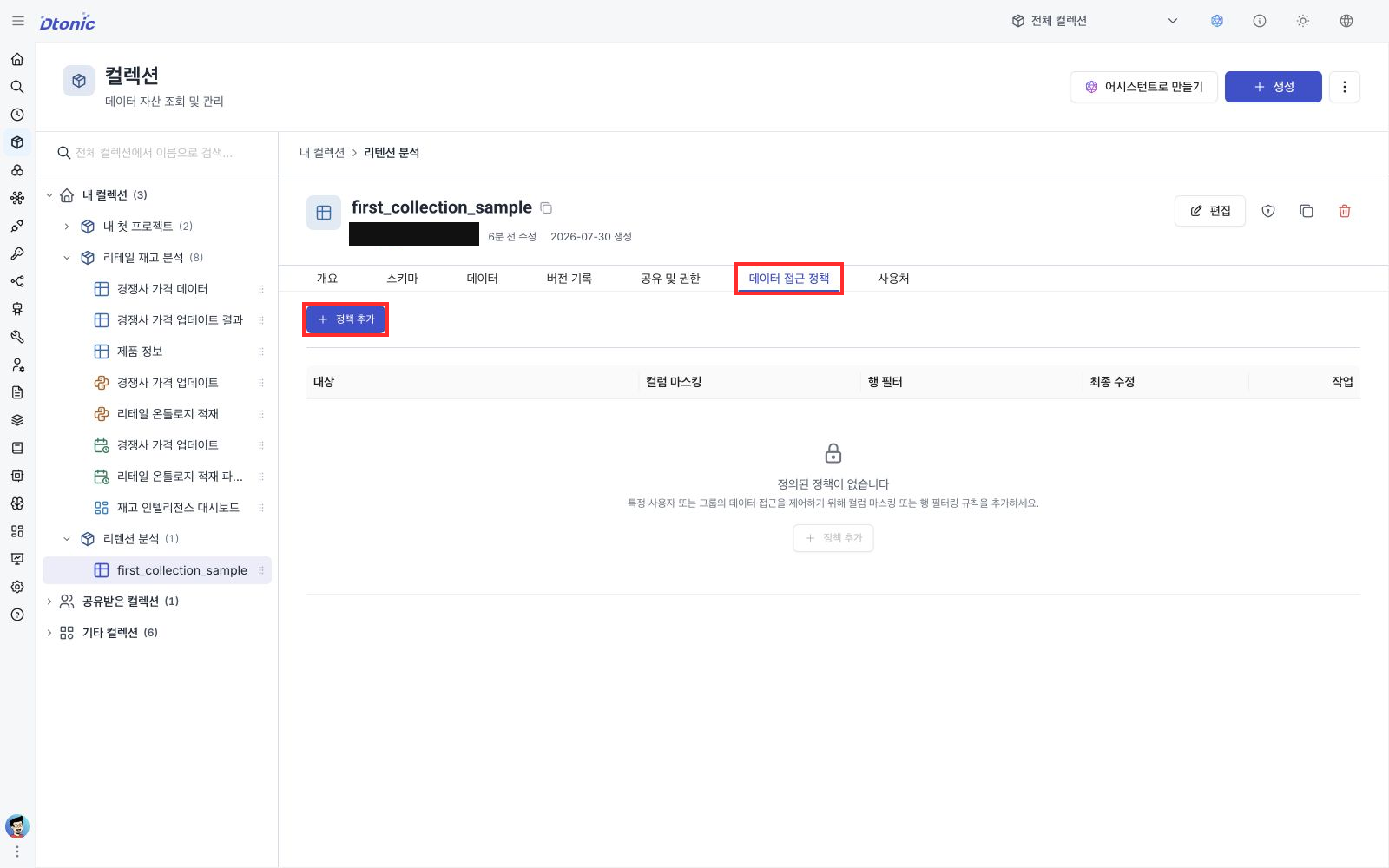
- From the dataset detail page, open the Data Access Policies tab. Without delete permission the tab opens, but the Add Policy button is hidden.
- Click Add Policy to open the policy form modal.
- In Subject, type at least two characters to search for a user or group. Only users and groups inside your own permission scope appear in results.
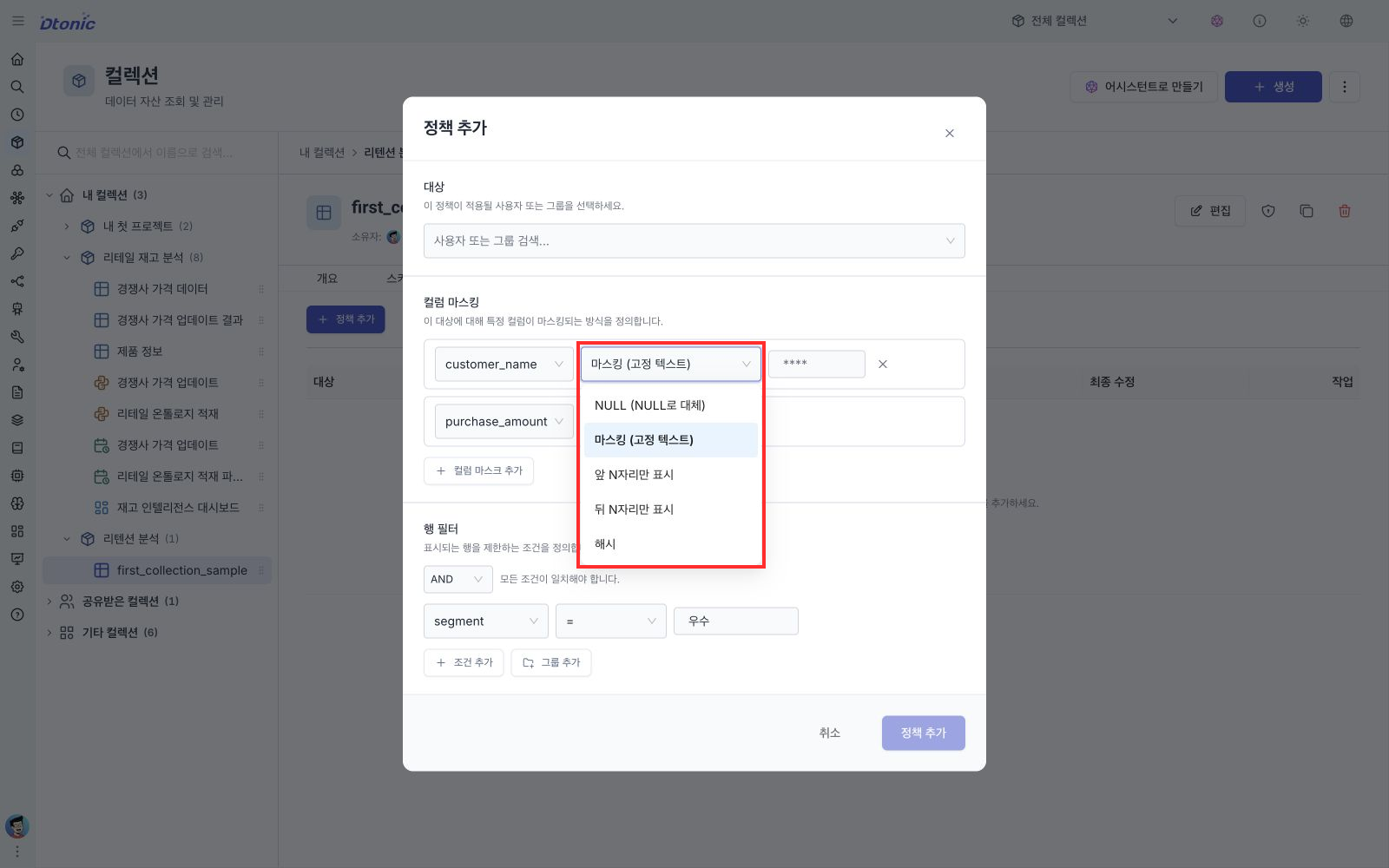
- In Column Masks, click Add column mask to add the masked columns one row at a time.
The current Manager API supports five mask types used by this tutorial:
| Data area | Recommended mask type |
|---|---|
| Identifiers like names and emails | Show only the leading N characters (default N=4) for the readability/uniqueness trade-off |
| Identifiers where the suffix is used for confirmation, such as phone or account numbers | Show only the trailing N characters (default N=4) |
| Amounts and transaction prices | Replace with NULL — to avoid confusion with 0 |
| Addresses and lat/long | Fixed text (**** by default) |
| Comparing identifiers is needed but the body must stay hidden | Hash (SHA-256) — the same input maps to the same hash so matching still works |
3. Row filters (2 min)
In the same modal's Row Filters area, define row constraints via Add condition. One condition has three slots: column · operator · value.
- Group combination: per group, toggle AND (all conditions match) or OR (any one matches). Groups can be nested for expressions like department is A or B and amount < 1,000,000 — up to three levels of nesting.
- Common operators:
IN(enter multiple values as tags),BETWEEN(start to end),IS NULL/IS NOT NULL(no value). - Without a row filter there is no row restriction — every row is visible, with the masked columns still applied.
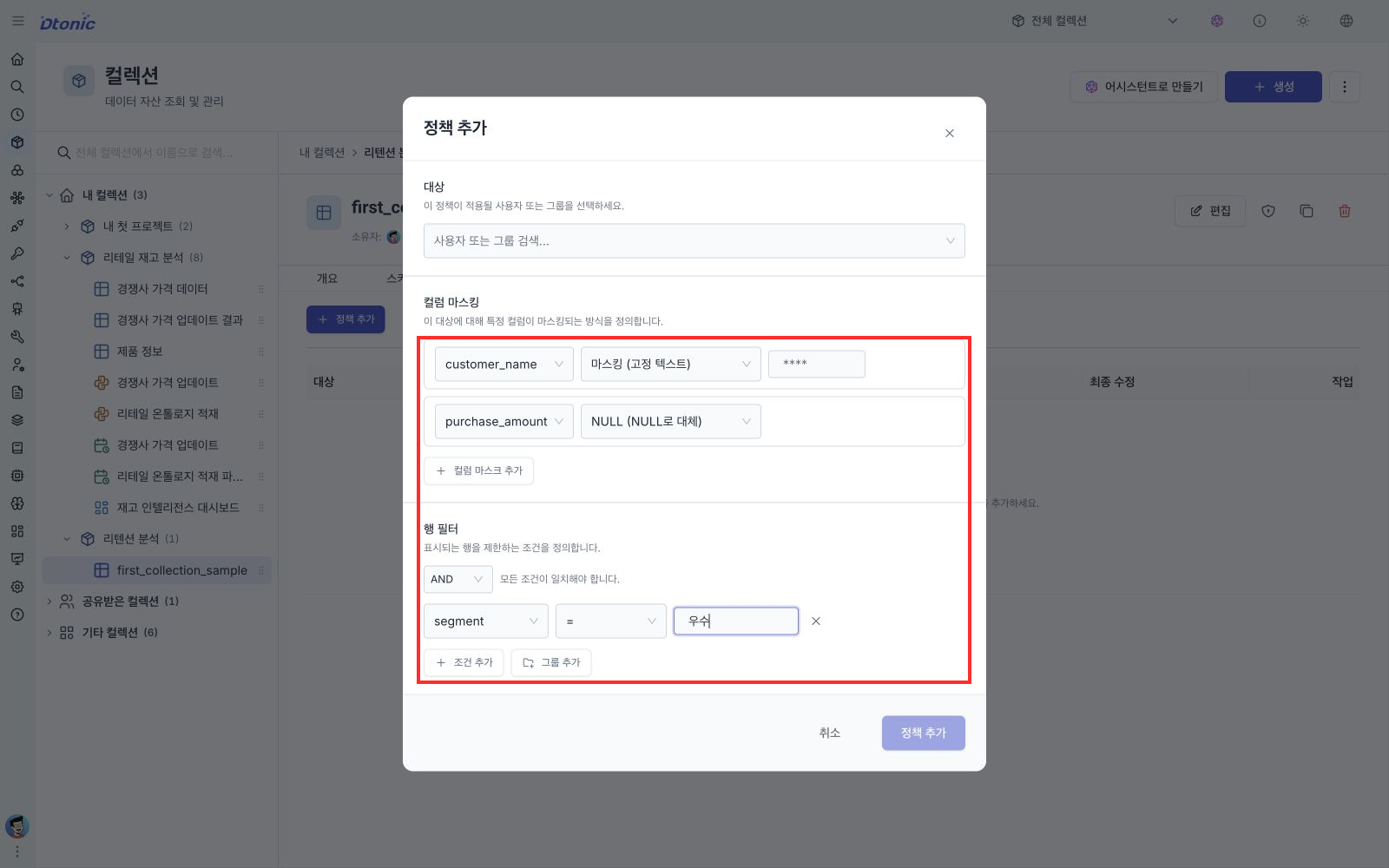
Select Add Policy at the bottom. A Policy created notice appears and the list refreshes immediately. If Subject is unset, the button is disabled.
4. Test — query from the subject's seat (2 min)
After saving, sign in with a test account that matches the selected subject, open the dataset's Data tab, and confirm the result. The policy is subject-specific, so checking it only with the administrator who authored it does not prove that it works. If you aren't the subject yourself, one of two patterns usually applies:
- A pre-prepared test account placed into a temporary group, with the policy granted to that group → sign in as the test account.
- A colleague in another department asked to confirm whether the column is masked, with the result attached as a screenshot to your operational log.
When testing, check both:
- The masked columns still appear as columns in the result table — the schema stays the same, only values change.
- The row filter passes exactly the expected row count — compare total rows vs filtered rows in the dataset metadata.
5. Rollout — the last three things before going live (1 min)
- Notification — A one-line heads-up to the subjects: from when, which columns and rows will be hidden. This matters more when analysis result interpretation is affected.
- Agreed rollback procedure — Deleting the policy reverts that subject to role-based permissions only. The operations team should know the revert is immediate.
- Operational log — Policy add, edit, and delete events recorded in your operations tooling. Portal's own security audit log screen isn't separately specified yet, so this operational log is your primary audit trail.
Self-check
You can confirm this tutorial is complete via these five points.
- You added one policy with subject = a group on a single dataset.
- You applied at least two of the five supported column mask types together inside one policy.
- You applied one row filter group with at least two conditions joined by AND or OR.
- You looked at the masked result once from the seat of a test account or a subject colleague.
- You recorded the policy addition and a one-line rollback procedure in your operational log.
Next steps
- The most common deployments are per-department sales reports and PII column masking. Solving department-level visibility with group + row filter in one shot lightens permission operations on the analyst-facing collection.
- For the full permission model in one pass, see Permission model at a glance (7 min).
- For how to register and sync the subjects (users and groups) into portal in the first place, see SSO and account provisioning in one page (8 min).
When the three Admin Tutorials together describe one consistent operational cycle, this bundle can graduate to a Platform Admin Path in a future round.